> ## Documentation Index
> Fetch the complete documentation index at: https://docs.screenshepherd.live/llms.txt
> Use this file to discover all available pages before exploring further.
# Control Panel
> The small bar you run a service from, the window behind it, and the settings page.
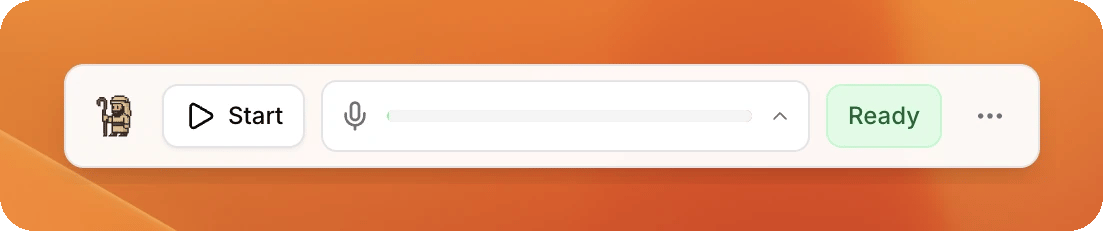
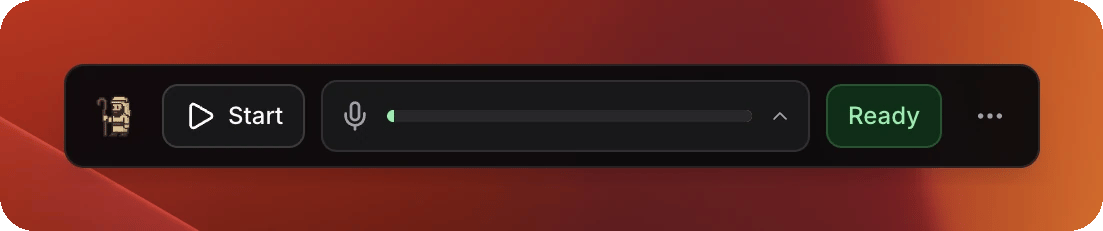
The Control Panel is the small bar that floats on top of everything else. It is what you use on a Sunday. The full ScreenShepherd window is for setting things up and for looking at afterwards.
 ## What is on the bar
| | |
| -------------- | --------------------------------------------------------------------------------------------------------------------------------- |
| **Start** | Press it when the band begins. Nothing moves until you do. It becomes **Stop** while it is listening. |
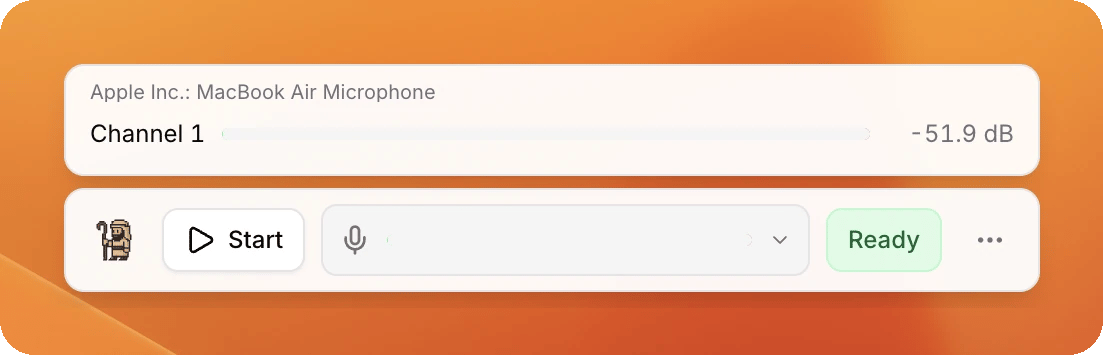
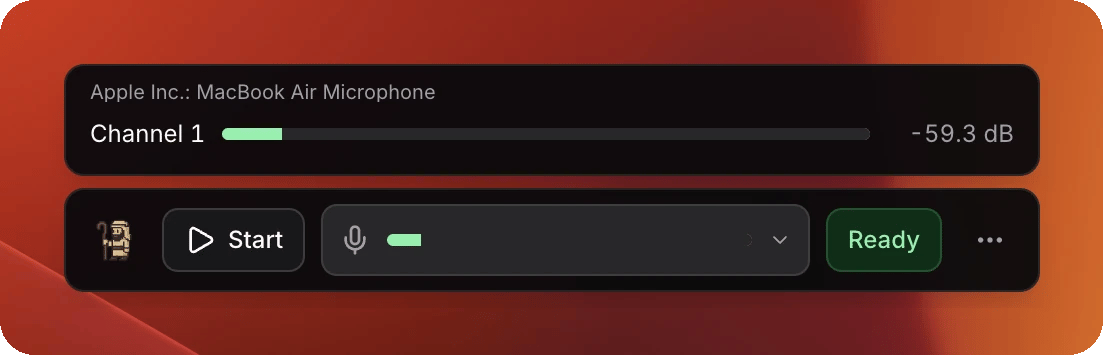
| The meter | What it is hearing. Click it to open a row per singer, so you can tell a dead microphone from a quiet one. |
| **Ready** | Green is good to go. **Starting** means give it a moment, **Needs attention** means click it and read the three lines underneath. |
| The three dots | Opens the full window. |
Double-clicking the bar opens the full window too.
### Clicking the meter
A row for every vocal channel, with its own level. This is how you tell a microphone that is dead from one that is simply quiet.
## What is on the bar
| | |
| -------------- | --------------------------------------------------------------------------------------------------------------------------------- |
| **Start** | Press it when the band begins. Nothing moves until you do. It becomes **Stop** while it is listening. |
| The meter | What it is hearing. Click it to open a row per singer, so you can tell a dead microphone from a quiet one. |
| **Ready** | Green is good to go. **Starting** means give it a moment, **Needs attention** means click it and read the three lines underneath. |
| The three dots | Opens the full window. |
Double-clicking the bar opens the full window too.
### Clicking the meter
A row for every vocal channel, with its own level. This is how you tell a microphone that is dead from one that is simply quiet.
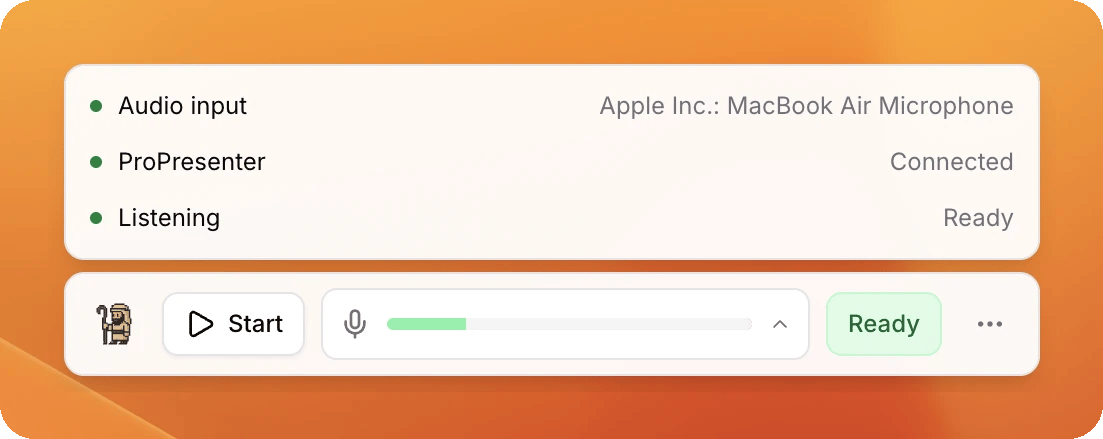
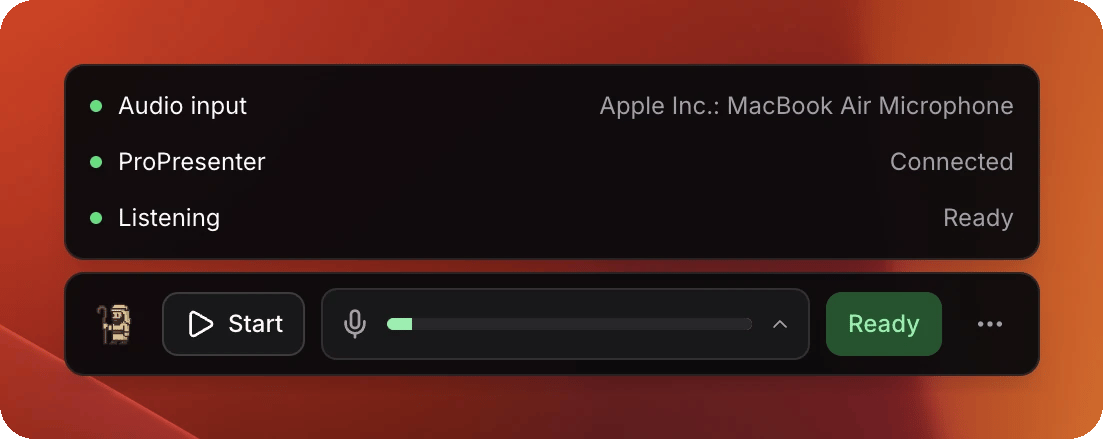
 ### Clicking the status word
Three lines: the microphone, ProPresenter, and whether it is listening. When something is wrong, this is what names it.
### Clicking the status word
Three lines: the microphone, ProPresenter, and whether it is listening. When something is wrong, this is what names it.
 ## Moving it
Drag it anywhere. It stays where you put it, and it is in the same place the next
time ScreenShepherd opens.
In a booth, put it on the operator's screen, not the one going out to the congregation.
## Which screen is which
Menu bar icon at the top of the screen → **Operator display**, then pick yours from the list. The main one says **(primary)**.
With only one screen the menu says:
> **⚠ Single display — Control Panel may overlap output**
There is nowhere safe to put the bar in that case, so it may appear over what the congregation sees. Drag it into a corner nothing important reaches.
## If you lose it
Menu bar icon → **Show Control Panel**.
If it has ended up on a screen that is no longer plugged in, use **Recentre Control Panel on operator display** in the same menu. It comes back to the middle of your screen.
## The menu bar icon
Everything on the bar, plus the housekeeping, without opening a window.
| | |
| ---------------------------------------------- | ----------------------------------------------- |
| **Start / Stop Listening** | The same as the button on the bar. |
| **Show Control Panel** | Brings the bar back. |
| **Recentre Control Panel on operator display** | Puts it back in the middle of your screen. |
| **Open full window** | The ScreenShepherd window. |
| **Settings…** | Straight to the settings page. |
| **Operator display** | Which screen is yours. |
| **Show session logs** | Opens the folder of past services. |
| **Restart listening** | For when nothing else has worked. |
| **Check for updates…** | It updates itself anyway. This just checks now. |
| **Quit ScreenShepherd** | Worth doing after a service. |
The top line of that menu also says how ScreenShepherd itself is doing, and the line below the separator tells you the state of the microphone permission.
## The full window
One page. A greeting, your church's name, then one wide status line saying whether this computer can run a service: **Ready to go**, or the thing that is wrong and why.
## Moving it
Drag it anywhere. It stays where you put it, and it is in the same place the next
time ScreenShepherd opens.
In a booth, put it on the operator's screen, not the one going out to the congregation.
## Which screen is which
Menu bar icon at the top of the screen → **Operator display**, then pick yours from the list. The main one says **(primary)**.
With only one screen the menu says:
> **⚠ Single display — Control Panel may overlap output**
There is nowhere safe to put the bar in that case, so it may appear over what the congregation sees. Drag it into a corner nothing important reaches.
## If you lose it
Menu bar icon → **Show Control Panel**.
If it has ended up on a screen that is no longer plugged in, use **Recentre Control Panel on operator display** in the same menu. It comes back to the middle of your screen.
## The menu bar icon
Everything on the bar, plus the housekeeping, without opening a window.
| | |
| ---------------------------------------------- | ----------------------------------------------- |
| **Start / Stop Listening** | The same as the button on the bar. |
| **Show Control Panel** | Brings the bar back. |
| **Recentre Control Panel on operator display** | Puts it back in the middle of your screen. |
| **Open full window** | The ScreenShepherd window. |
| **Settings…** | Straight to the settings page. |
| **Operator display** | Which screen is yours. |
| **Show session logs** | Opens the folder of past services. |
| **Restart listening** | For when nothing else has worked. |
| **Check for updates…** | It updates itself anyway. This just checks now. |
| **Quit ScreenShepherd** | Worth doing after a service. |
The top line of that menu also says how ScreenShepherd itself is doing, and the line below the separator tells you the state of the microphone permission.
## The full window
One page. A greeting, your church's name, then one wide status line saying whether this computer can run a service: **Ready to go**, or the thing that is wrong and why.
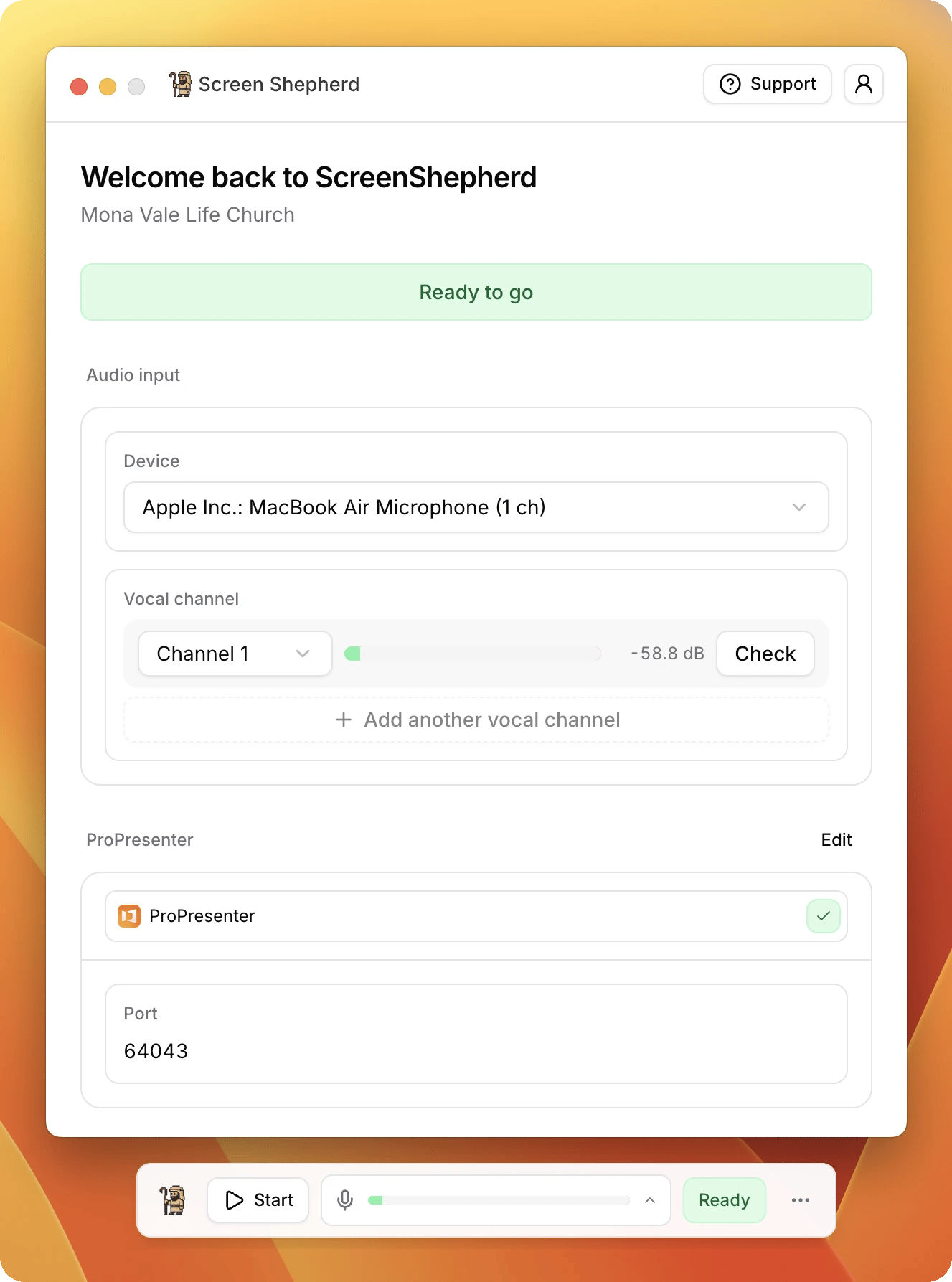
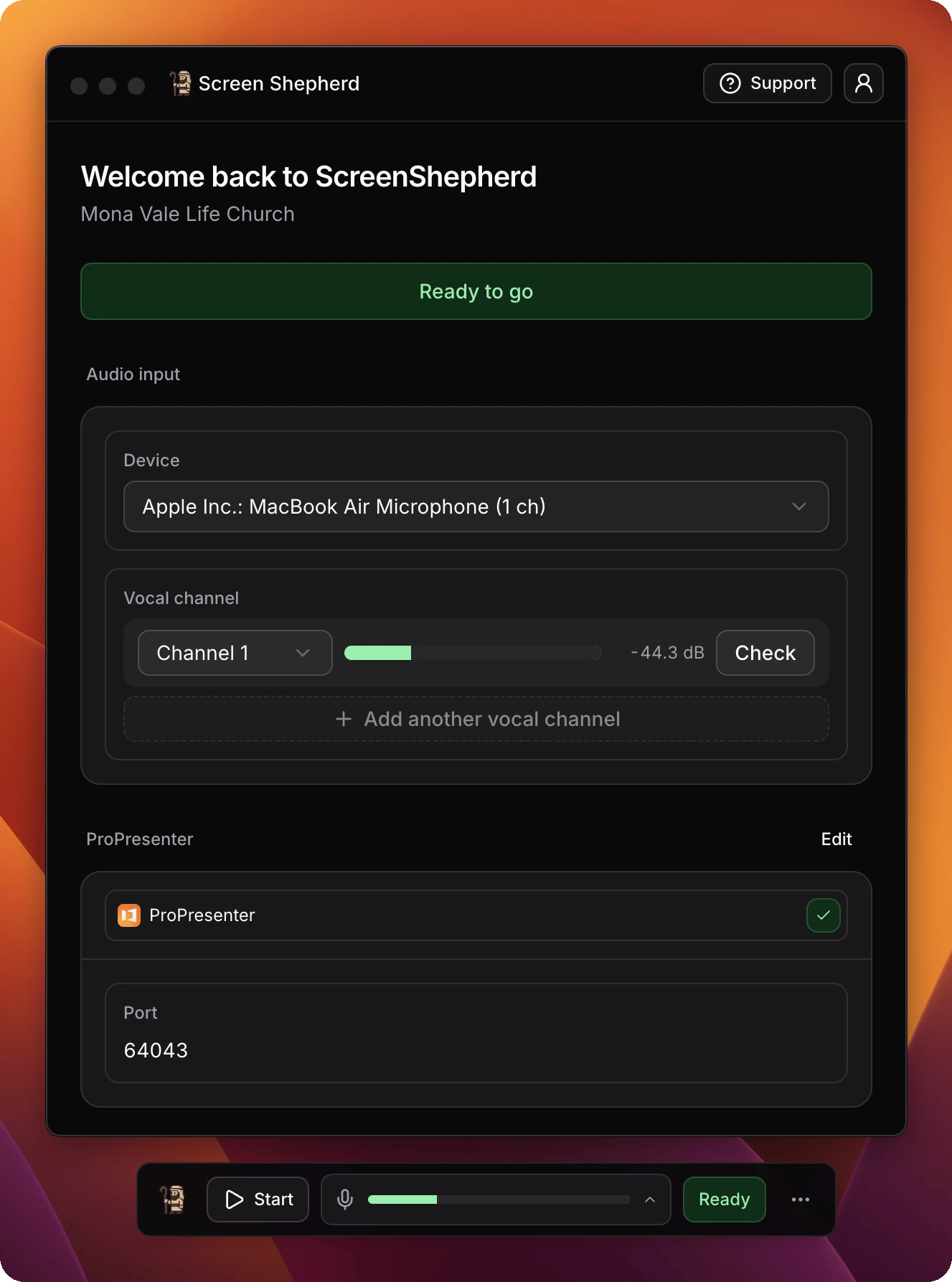 Under the banner are the two things a church sets up, **Audio input** and **ProPresenter**, each showing its live state above the controls that change it.
Things that only appear when they are relevant: the **Go back to** button after it changes song by itself, and the **Showing** line while a bible passage is on the screen.
The round account button in the top right holds **Settings** and **Sign out**. **Support** beside it opens this site.
## The settings page
Account button → **Settings**. The arrow at the top left takes you back.
| | |
| --------------------- | ----------------------------------------------------------------------------------------------------------------- |
| **Account** | Who is signed in, your church, your role, and **Sign out**. |
| **Subscription** | Whether this computer may run, and **Manage billing**. See [Account and billing](/reference/account-and-billing). |
| **Appearance** | **Theme**: **System**, **Light** or **Dark**. |
| **Microphone access** | **Granted**, **Denied** or **Not asked yet**, with **Open system settings** when it needs fixing. |
| **Restart listening** | **Restart**, for when nothing is being heard and nothing else has worked. |
| **Session records** | **Show in Finder** opens the folder of past services. |
| **Run setup again** | Takes you back through the first-run walkthrough. |
| **Developer console** | Off by default. Leave it off. |
| **About** | The version you are on, and **Check for updates**. |
**Developer console** turns on two extra tabs full of detail, meant for whoever looks after the install rather than whoever is at the desk. Leave it off for a Sunday.
Under the banner are the two things a church sets up, **Audio input** and **ProPresenter**, each showing its live state above the controls that change it.
Things that only appear when they are relevant: the **Go back to** button after it changes song by itself, and the **Showing** line while a bible passage is on the screen.
The round account button in the top right holds **Settings** and **Sign out**. **Support** beside it opens this site.
## The settings page
Account button → **Settings**. The arrow at the top left takes you back.
| | |
| --------------------- | ----------------------------------------------------------------------------------------------------------------- |
| **Account** | Who is signed in, your church, your role, and **Sign out**. |
| **Subscription** | Whether this computer may run, and **Manage billing**. See [Account and billing](/reference/account-and-billing). |
| **Appearance** | **Theme**: **System**, **Light** or **Dark**. |
| **Microphone access** | **Granted**, **Denied** or **Not asked yet**, with **Open system settings** when it needs fixing. |
| **Restart listening** | **Restart**, for when nothing is being heard and nothing else has worked. |
| **Session records** | **Show in Finder** opens the folder of past services. |
| **Run setup again** | Takes you back through the first-run walkthrough. |
| **Developer console** | Off by default. Leave it off. |
| **About** | The version you are on, and **Check for updates**. |
**Developer console** turns on two extra tabs full of detail, meant for whoever looks after the install rather than whoever is at the desk. Leave it off for a Sunday.