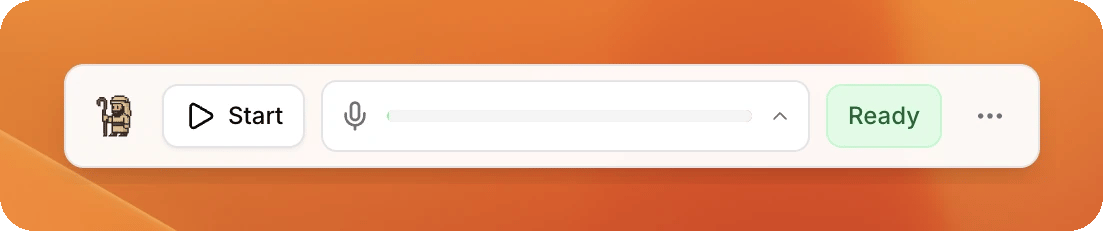
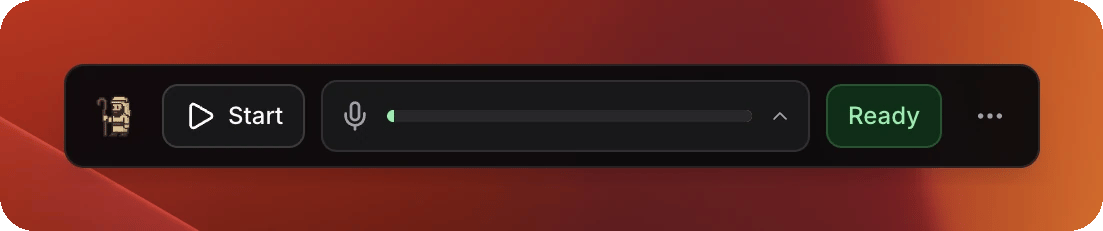
The Control Panel is the small bar that floats on top of everything else. It is what you use on a Sunday. The full ScreenShepherd window is for setting things up and for looking at afterwards. The Control Panel: a small bar with a Start button, a microphone level meter, and a green Ready button The Control Panel: a small bar with a Start button, a microphone level meter, and a green Ready button

What is on the bar

Double-clicking the bar opens the full window too.

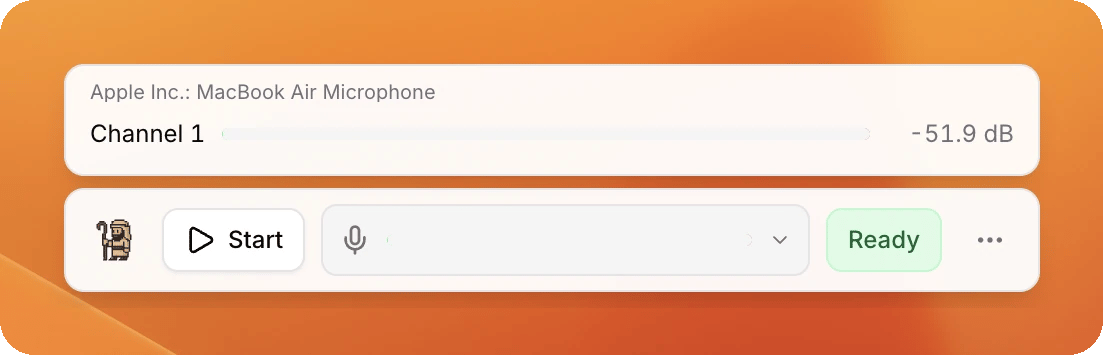
Clicking the meter

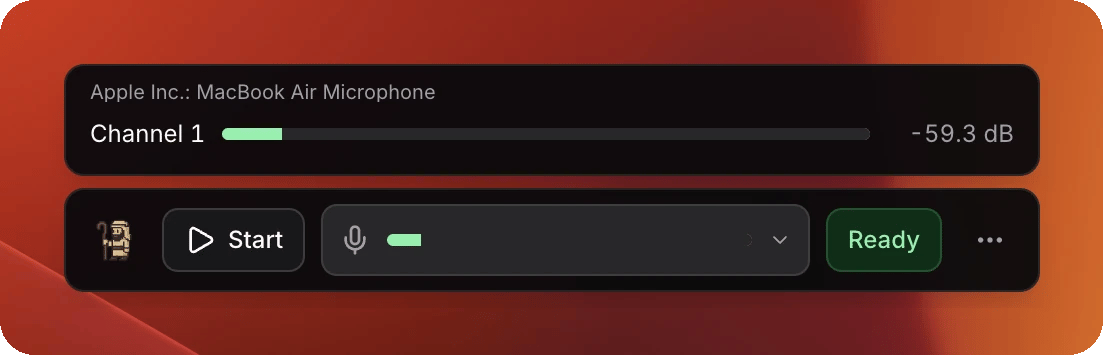
A row for every vocal channel, with its own level. This is how you tell a microphone that is dead from one that is simply quiet. The Control Panel with the channel list open, showing the audio device name and a level meter for Channel 1 The Control Panel with the channel list open, showing the audio device name and a level meter for Channel 1
Clicking the status word

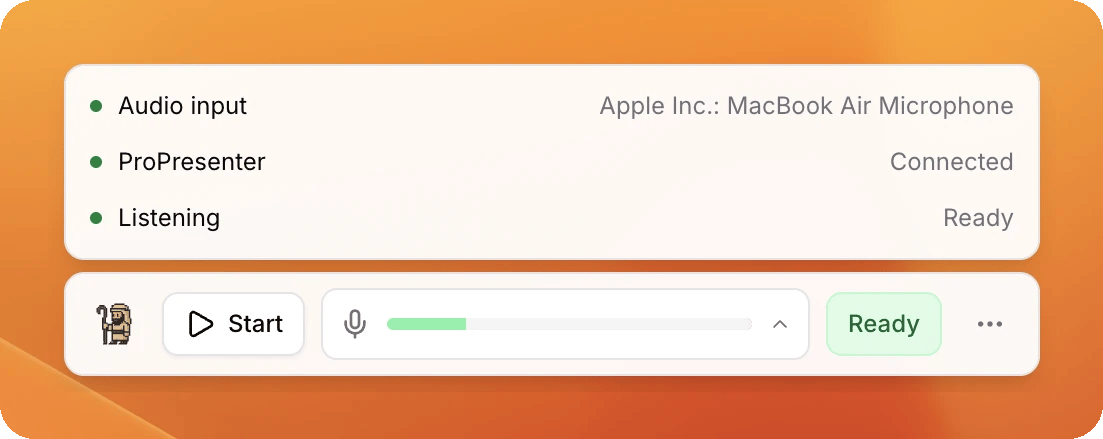
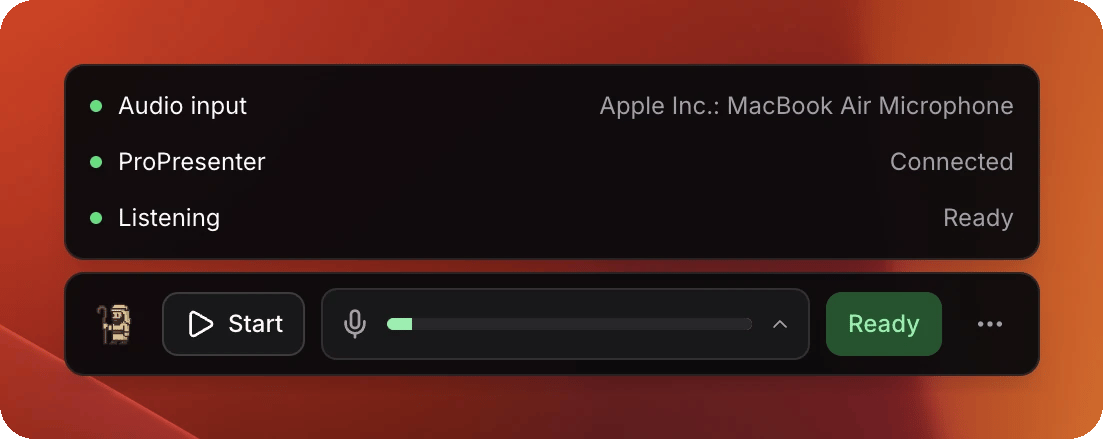
Three lines: the microphone, ProPresenter, and whether it is listening. When something is wrong, this is what names it. The Control Panel with the status panel open, listing Audio input, ProPresenter and Listening, each with a green dot The Control Panel with the status panel open, listing Audio input, ProPresenter and Listening, each with a green dot
Moving it

Drag it anywhere. It stays where you put it, and it is in the same place the next time ScreenShepherd opens. In a booth, put it on the operator’s screen, not the one going out to the congregation.

Which screen is which

Menu bar icon at the top of the screen → Operator display, then pick yours from the list. The main one says (primary). With only one screen the menu says:
⚠ Single display — Control Panel may overlap output
There is nowhere safe to put the bar in that case, so it may appear over what the congregation sees. Drag it into a corner nothing important reaches.

If you lose it

Menu bar icon → Show Control Panel. If it has ended up on a screen that is no longer plugged in, use Recentre Control Panel on operator display in the same menu. It comes back to the middle of your screen.

The menu bar icon

Everything on the bar, plus the housekeeping, without opening a window. The top line of that menu also says how ScreenShepherd itself is doing, and the line below the separator tells you the state of the microphone permission.

The full window

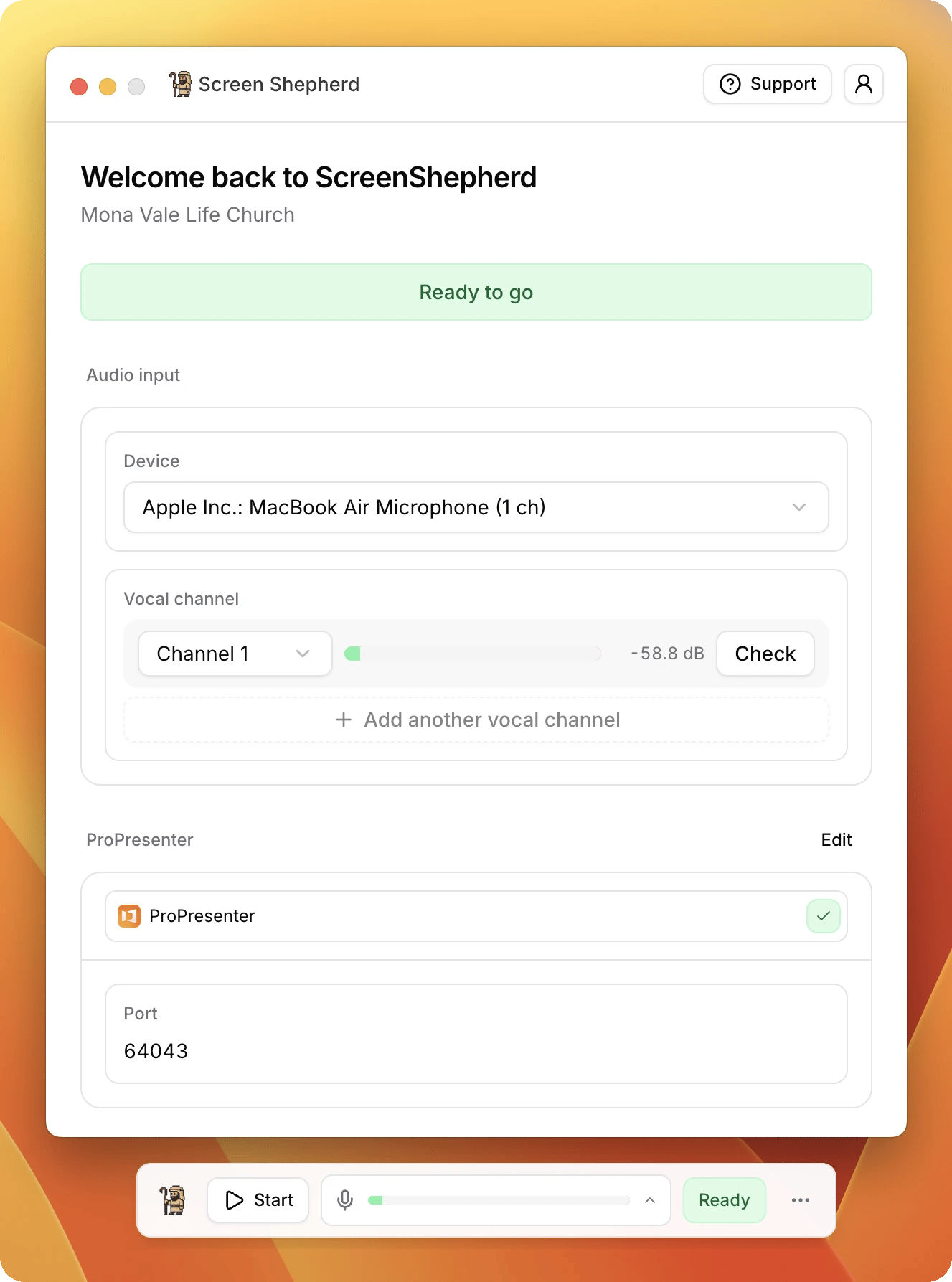
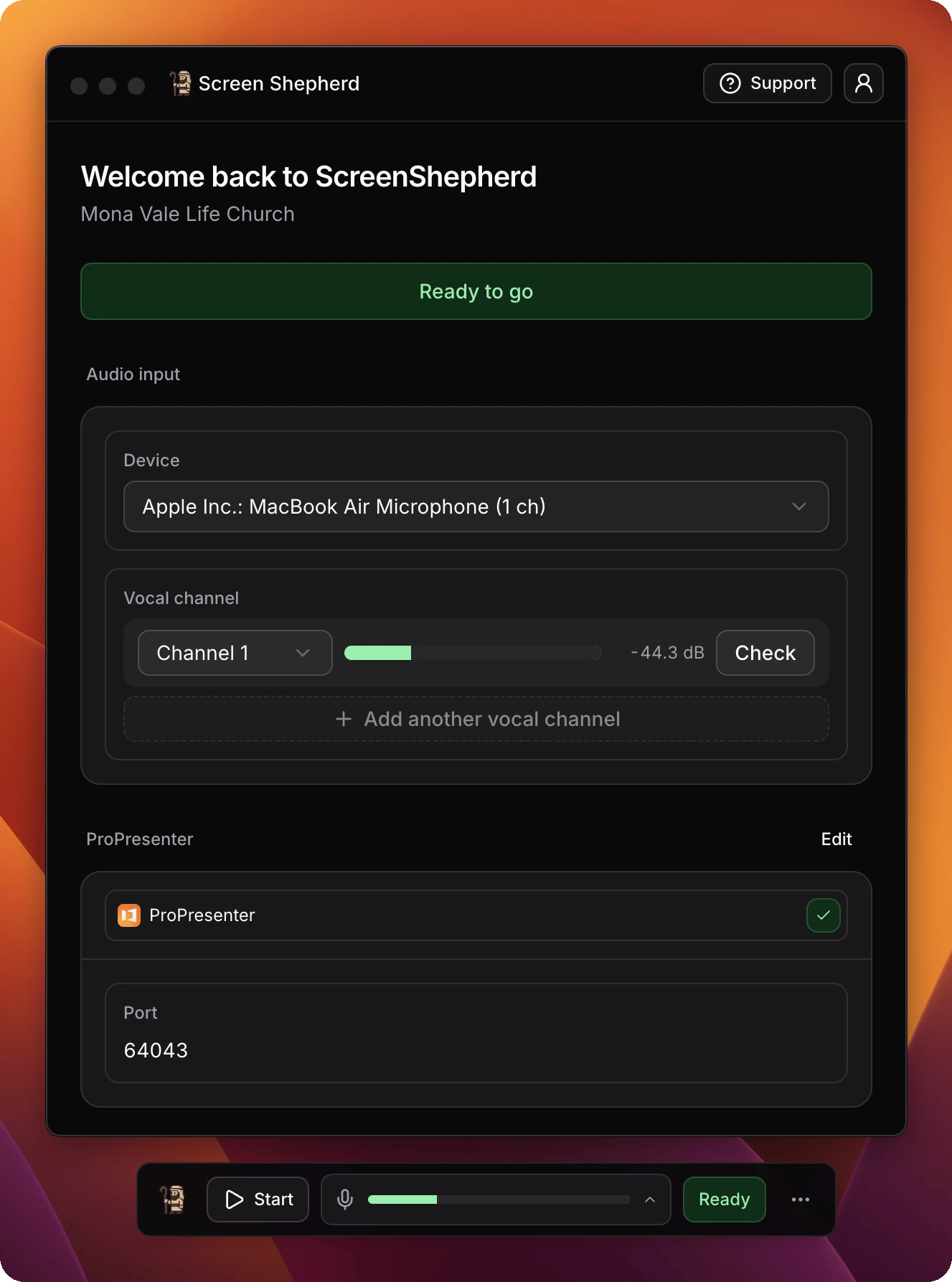
One page. A greeting, your church’s name, then one wide status line saying whether this computer can run a service: Ready to go, or the thing that is wrong and why. The ScreenShepherd window: a Ready to go banner, the Audio input section with device and vocal channel, and the ProPresenter section with its port The ScreenShepherd window: a Ready to go banner, the Audio input section with device and vocal channel, and the ProPresenter section with its port Under the banner are the two things a church sets up, Audio input and ProPresenter, each showing its live state above the controls that change it. Things that only appear when they are relevant: the Go back to button after it changes song by itself, and the Showing line while a bible passage is on the screen. The round account button in the top right holds Settings and Sign out. Support beside it opens this site.
The settings page

Account button → Settings. The arrow at the top left takes you back.
Developer console turns on two extra tabs full of detail, meant for whoever looks after the install rather than whoever is at the desk. Leave it off for a Sunday.