

1
Choose your device
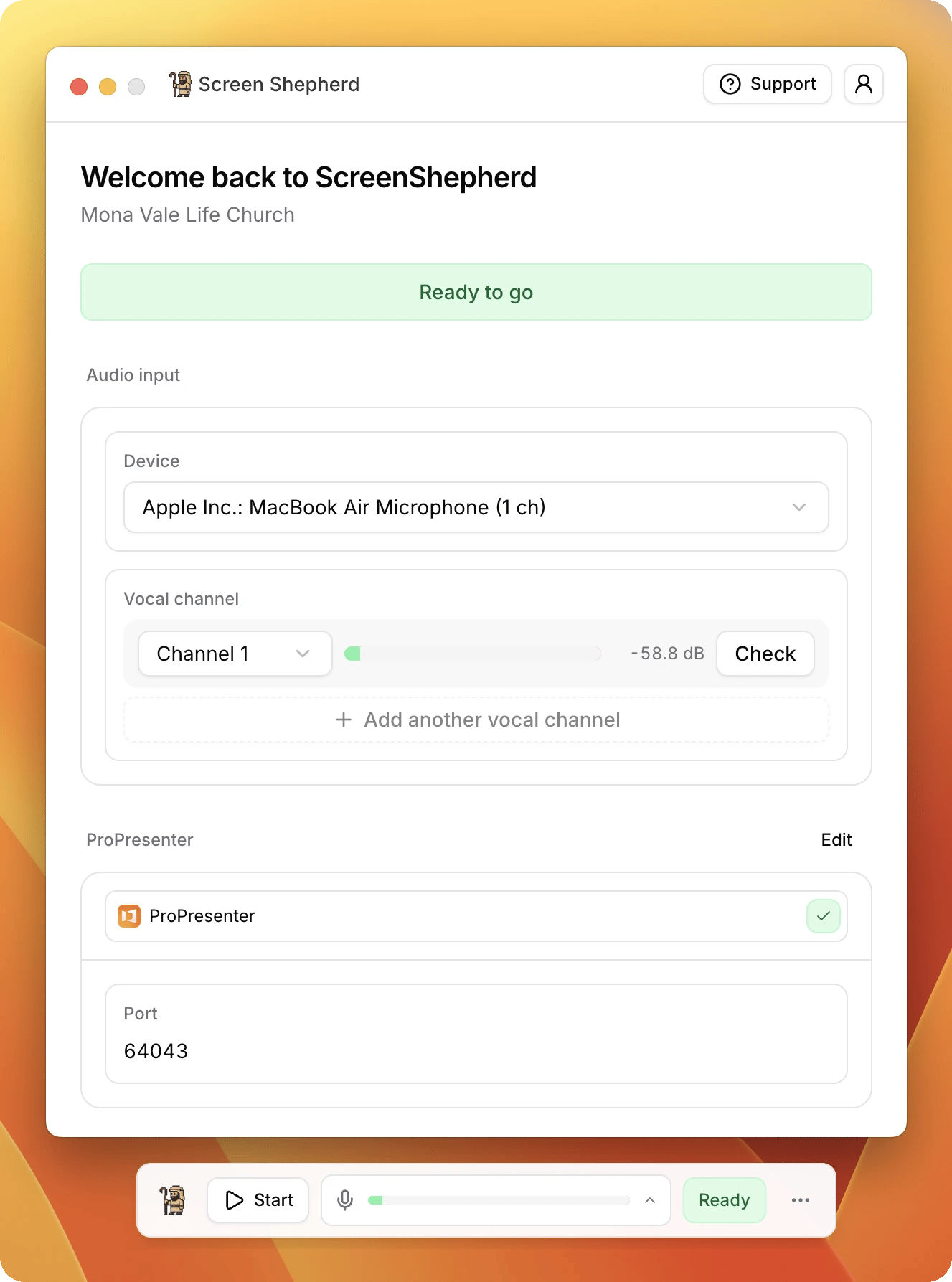
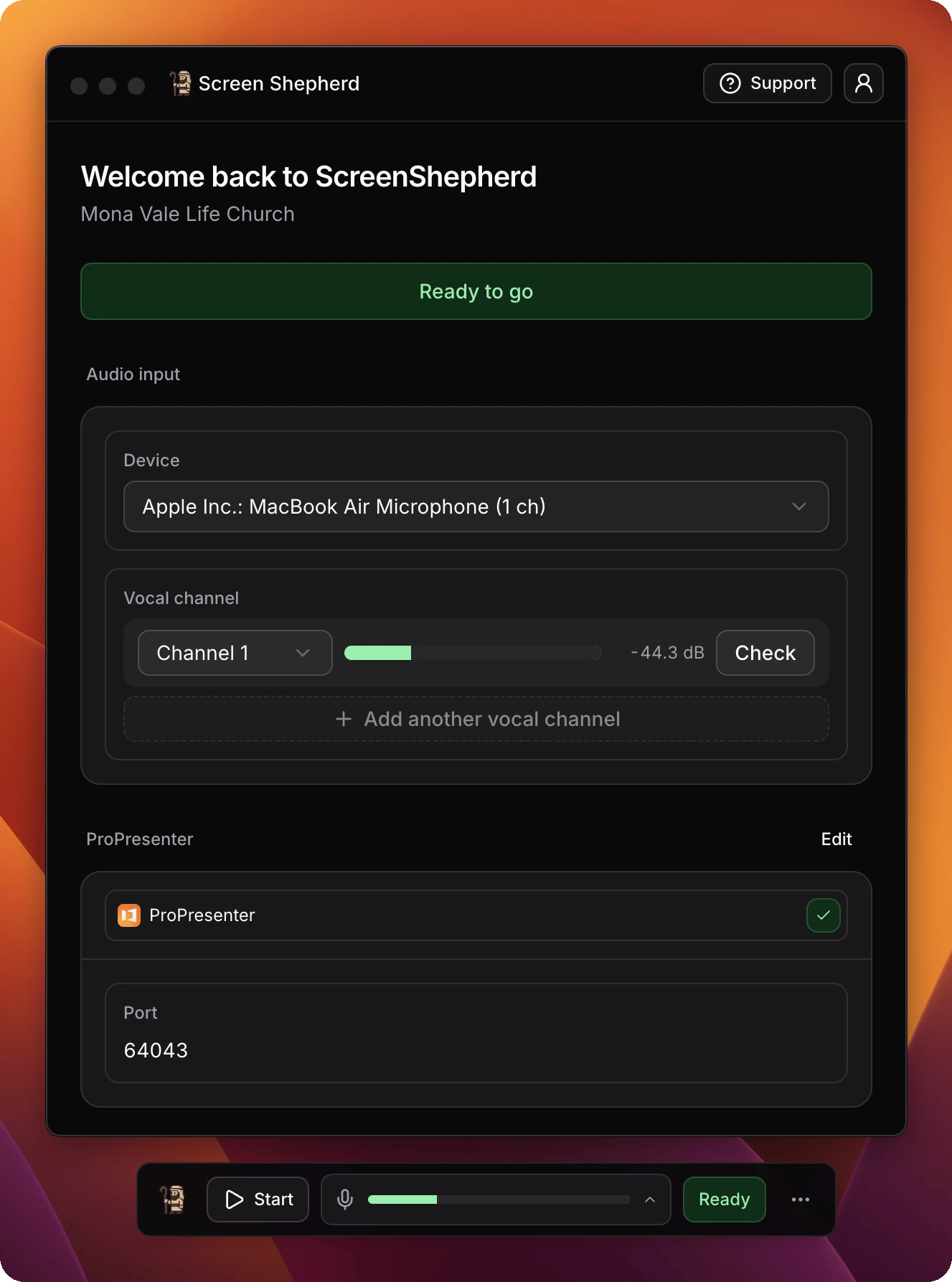
Under Device, pick your audio interface from the list. That is the box
your microphones are plugged into. The list shows how many channels each one
has.On Windows the list has two parts. ASIO — every channel holds your
desk under its own driver, with all of its channels. Windows holds
what Windows itself sees, which for a USB desk is usually two channels.
Pick the ASIO entry when your singer is on a channel above 2. If it will
not open, close any other program that is using the desk. ASIO lets one
program use it at a time.
2
Choose the channel the lead singer is on
Under Vocal channel, pick the channel the lead vocal arrives on. The
meter beside it moves when someone sings into that microphone.On a big desk, look at the line underneath. It tells you which channels have
anything arriving at all, something like Signal on channels 1, 2 and 3,
and says when the rest are silent. That turns twenty-four channels into a
handful worth trying.
3
Prove it
Press Check. The screen dims and asks you to sing a line of a well known
hymn into that channel.Sing it. The words light up as they arrive. When it says That channel
carries the voice, the Check button becomes a green tick, and that is
how you know you picked the right one.Stop gives up on a channel so you can try another.
The input level
Under the vocal channels is Input level. Leave it on Auto. Auto turns a quiet desk up so ScreenShepherd hears every line, and leaves a good level alone. It needs a few lines of singing to settle, and it remembers the level for next time. If you would rather set it yourself, choose Manual and drag the slider while someone sings, until the meters above sit in the green. The slider starts where Auto had it. Off gives ScreenShepherd the desk exactly as it arrives, with no boost at all. Use it if you would rather set the level at the desk.More than one singer
If two or three people lead together, press Add another vocal channel for each of them and check each one. ScreenShepherd follows whoever is singing. Three is the most. The button tells you why when it cannot add another, usually because the interface has no spare channels. To change a channel later, use its own picker. To remove one, press the × beside it.Checking a microphone during a service
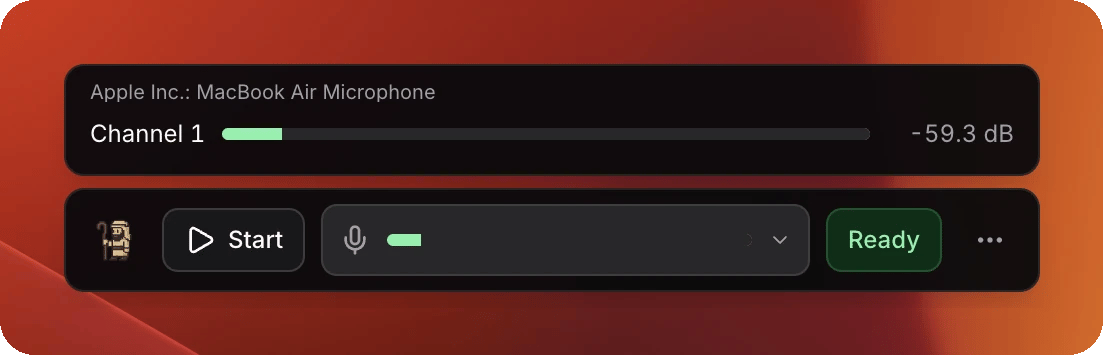
Click the meter on the Control Panel. Every vocal channel gets a row, with its own level, so you can see at a glance which microphone has gone quiet.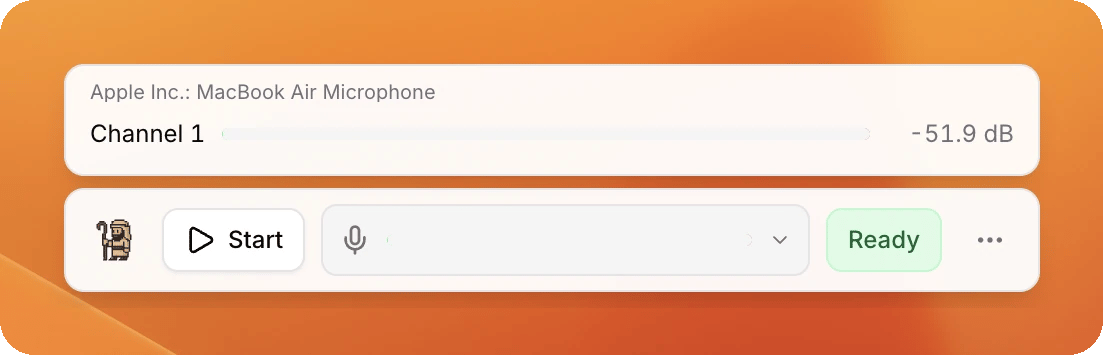
When it stops hearing anything
Can't hear the audio input
Can't hear the audio input
Under Audio input it says the input cannot be heard, and the Device
box says the interface is not here.Unplugging the interface, or moving it to a different socket, can leave the
saved choice pointing at nothing. Pick the interface again from the list.
Stopping and starting will not fix it.
The interface isn't in the list at all
The interface isn't in the list at all
Press the refresh button beside the Device list. ScreenShepherd also
looks again on its own every few seconds while it is not listening, and
the moment a device is plugged in or unplugged.If the list then says macOS sees your interface but ScreenShepherd can’t
open it, the interface is connected and working, and ScreenShepherd’s
audio library is refusing it. That is ours to fix: ask us for the
why-no-device file, double-click it on that Mac, and send us the report
it saves to your Desktop, together with a session log.
macOS is blocking the microphone
macOS is blocking the microphone
Account button in the top right → Settings. Under Microphone
access, press Open system settings and allow ScreenShepherd.
Nothing is arriving on any channel of this input
Nothing is arriving on any channel of this input
The interface is there but silent. Check the cable, the phantom power, and
that the desk is actually sending to this output.
When the level is wrong
The input is very quiet, even boosted
The input is very quiet, even boosted
Auto has turned it up as far as it goes, and the singing is still faint.
Turn up the desk’s send to ScreenShepherd, or the gain on the interface.
Slides moving late, a line or two after the singers, is the usual sign.
The input is too loud and distorting
The input is too loud and distorting
The audio is already distorted when it arrives, and no setting in
ScreenShepherd can undo that. Turn down the desk’s send to ScreenShepherd,
or the gain on the interface, until the meters stop reaching the red.
The boost is too high
The boost is too high
You are on Manual and the slider is pushing the singing too hard. Drag
it down, or choose Auto.
When the check will not pass
The words never light up
The words never light up
Try each channel in turn. It is nearly always the wrong channel rather than
a broken input. Make sure someone really is singing into that microphone
while you check.
Some words lit up, but it never confirmed the channel
Some words lit up, but it never confirmed the channel
Sing the whole line, clearly, into that microphone, then check again.
It follows one person but not the band
It follows one person but not the band
You are probably on a main mix rather than a vocal channel. Or your second
leader’s microphone has not been added yet.
Check is greyed out
Check is greyed out
You cannot check while it is listening. Press Stop on the Control Panel
first.
The green ticks last for this session only. A tick that outlives the cable it
was earned with would be worse than no tick, and checking again costs one line
of singing.