

Before the band arrives
1
Open ScreenShepherd
It may already be open. Look for the Control Panel, or for the ScreenShepherd icon in the menu bar at the top of the screen.
2
Open ProPresenter and put your first song up
ScreenShepherd follows whatever is on screen, so it needs something to follow.
3
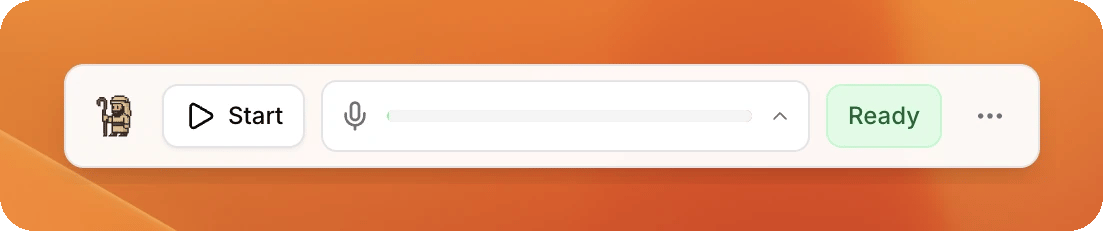
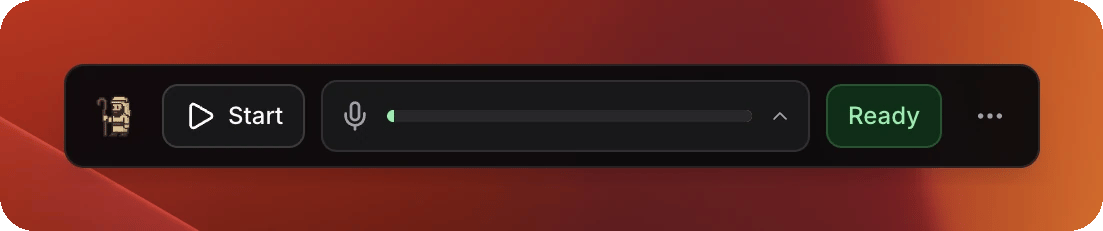
Check the Control Panel says Ready
Ready, in green, at the right-hand end of the bar.If it says Starting, give it a moment. If it says Needs attention, click it. A short list appears saying which of Audio input, ProPresenter and Listening is the problem. Take that to When something looks wrong.
4
Try one line
Press Start. Sing or say a line into the vocal microphone and watch the slide move.Press Stop, put the slide back to the beginning, and you are ready.
During the service
Press Start on the Control Panel when the band is ready. It becomes Stop. That is how you know it is on.
Now drive ProPresenter exactly as you always have. Anything you do there is respected straight away, and you never have to tell ScreenShepherd first.
Press Stop at the end of the last song.
If it changes song on its own
If it picked the wrong song, choose the right one in ProPresenter. It follows you straight away, and it will leave that song alone for a while.After the service
1
Press Stop
On the Control Panel. This is the one that matters.
2
Quit ScreenShepherd
Menu bar icon → Quit ScreenShepherd.Worth doing rather than leaving it open all week. It keeps recording while it is open, and that builds up on the computer.