You can always take over. Press next in ProPresenter and the right slide is up. Nothing you do here makes anything worse, and stopping ScreenShepherd never stops ProPresenter.

During the service

Find what you can see on the left. Do what is on the right. Do not try to work out why. That can wait until afterwards.

What Needs attention means

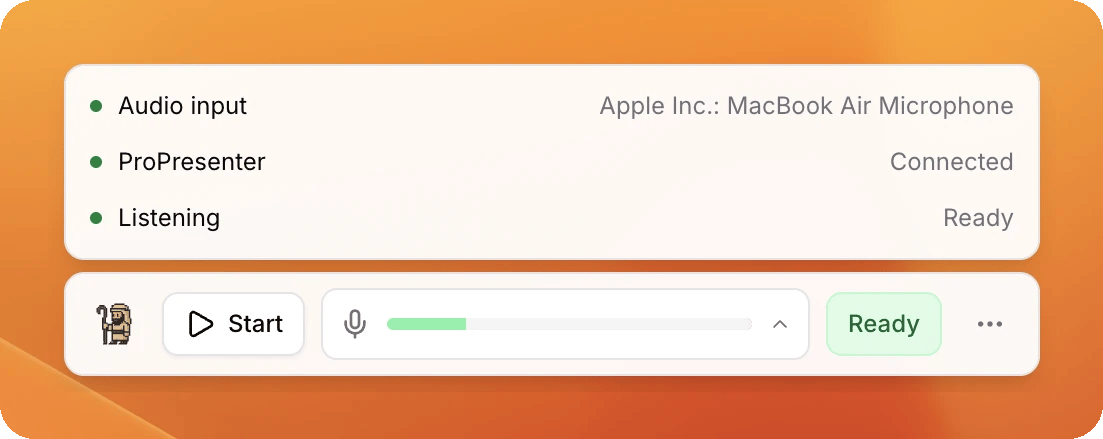
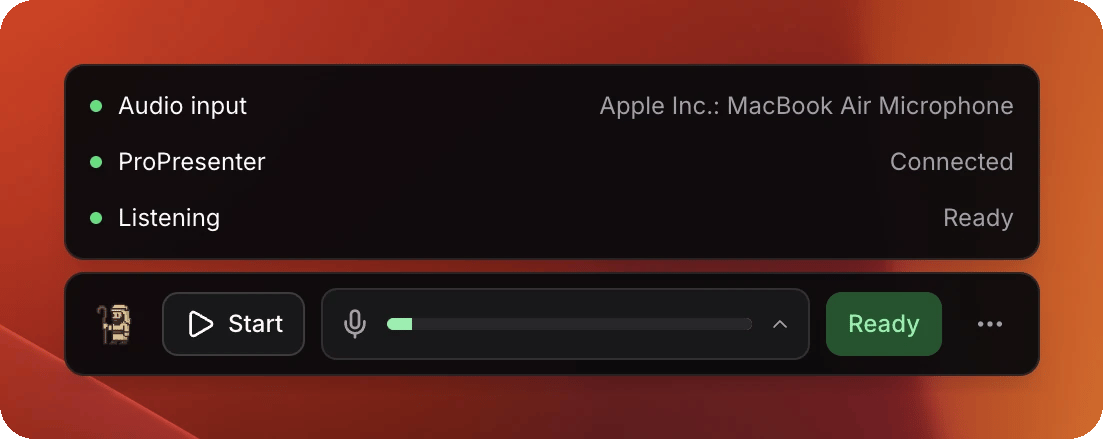
Clicking the status word opens three lines. Only one of them is usually the problem. The status panel open above the Control Panel, listing Audio input, ProPresenter and Listening, each with a green dot and its state The status panel open above the Control Panel, listing Audio input, ProPresenter and Listening, each with a green dot and its state Green on all three, as above, is a computer ready to run a service. When one is not green, this is what it means.
Not sure it is even listening?

Look at the button on the Control Panel.
  • It says Stop. It is on.
  • It says Start. It is off. Press it.

Not sure the microphone is alive?

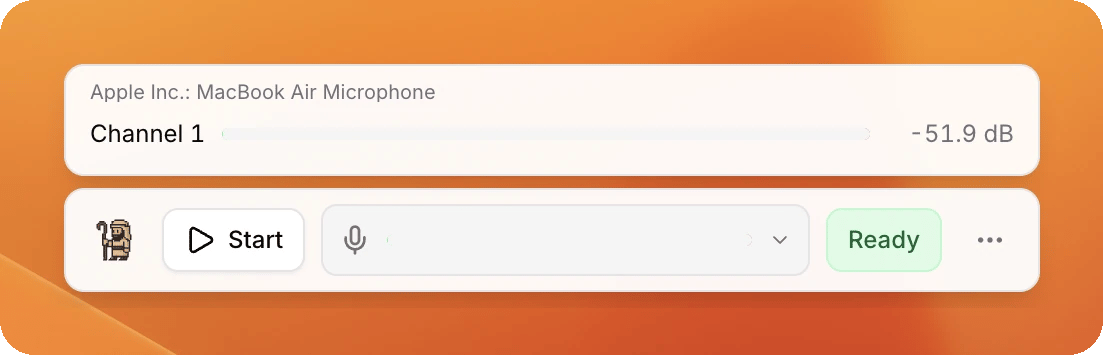
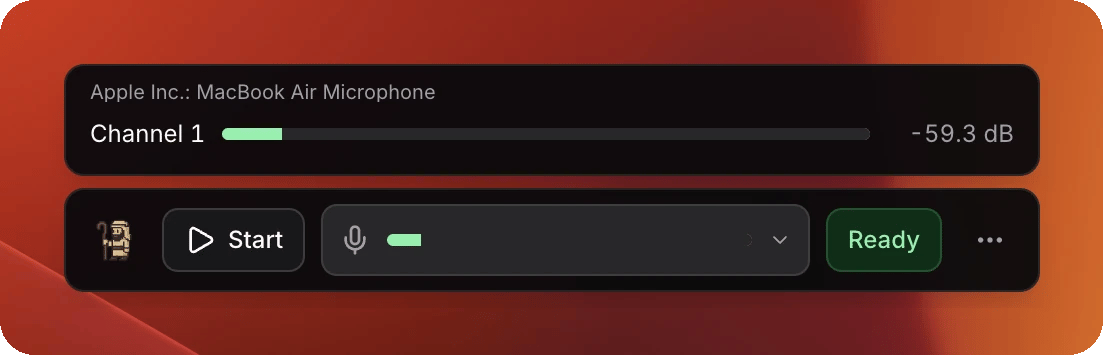
Click the meter. Every vocal channel gets a row of its own, so a microphone that has died looks different from one that is simply quiet. The channel list open above the Control Panel, showing the audio device name and the level on Channel 1 The channel list open above the Control Panel, showing the audio device name and the level on Channel 1
When it moves late

A slight delay is normal and it is deliberate. A slide that comes up too early is much worse in a service than one that comes up a moment late, so when ScreenShepherd is not sure it holds still rather than guessing. You will press next yourself now and then, usually when the band goes round a chorus again. That is it choosing to wait, and it is working as intended. See How it behaves.

Afterwards

Write down roughly what time the odd thing happened. That one detail is what makes it findable later.